
Start building a library of templates that will benefit all Transactly TCs.
Global email templates are email templates that are created by an Admin user, but are available for all Transactly TCs to use. In the video above learn everything about these templates, including how to create, preview, and edit a global email template, as well as navigate the global email tab.
Or, follow the instructions below to learn how to simply create a global email template.
1. Ensure you have logged in as an Admin through the Admin Login Portal.
Global email templates can only be created by an Admin, so in order to create or edit a template you must be logged in as an Admin.
2. Navigate to the Templates tab.

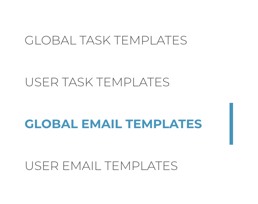
3. Select Global Email Templates.
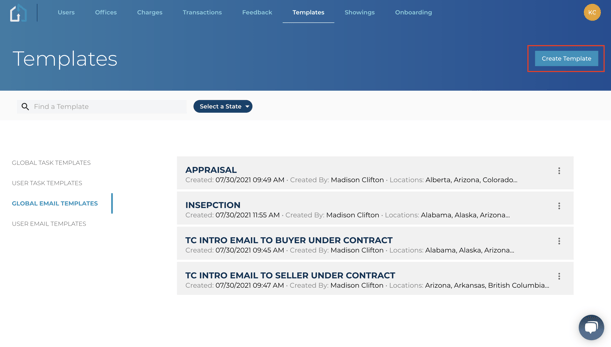
4. Select Create Template.
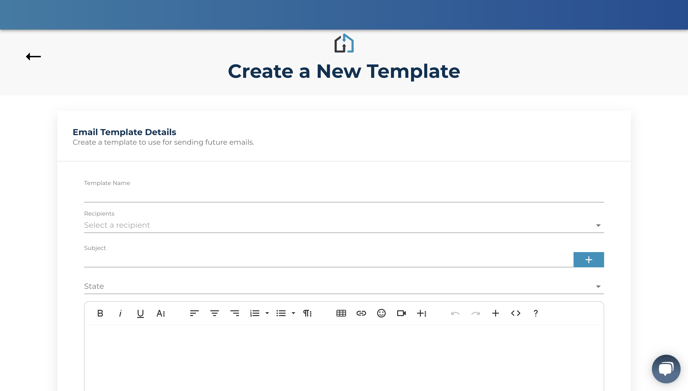
5. Fill out your template.
Make sure to give your template a clear name, and utilize any merge fields you can! This will help make the TCs life easier when using the templates, and ultimately encourage them to incorporate the global templates into their routine when working a transaction.
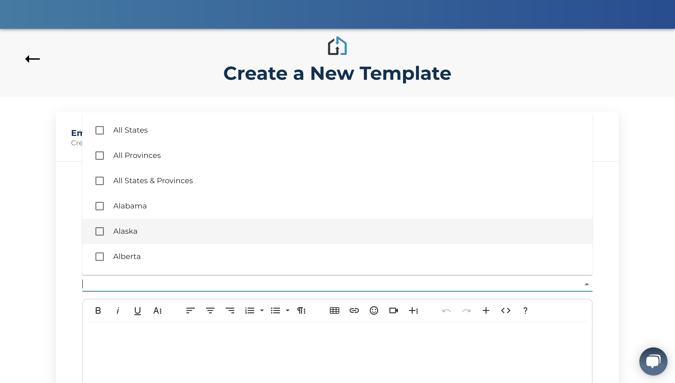
A unique feature available when creating a global email template that differs from creating a standard email template, is the ability to assign the template to a state. Assigning a state to a global template will ensure it is only available in the states you have selected. Allowing you to customize the global templates based on differences between states.
Tip: Use as any merge fields in your email templates as possible. These fields pre-populate information into a TCs email, saving them even more time.
6. Save your global template!
Questions about creating a global email template?
Contact Support@transactly.com or chat us in the bottom right now.