
All Transactly Codes must be approved by your Director prior to creating
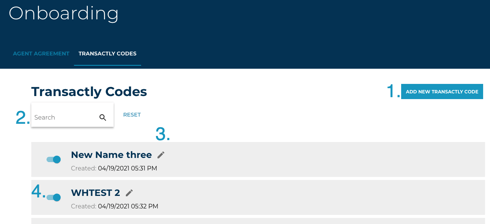
To locate Transactly Code capability
- Login as Admin
- Choose the Onboarding tab
- Choose Transactly Codes
From here you have the ability to
- Add a new Code
- Search codes
- Edit Codes
- Enable/ Disable Codes
Creating a Transactly Code
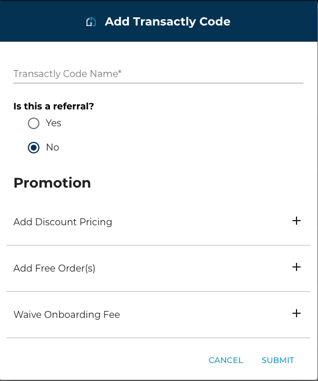
- Choose Add New Transacty Code
- Name your code
- Is this code attached to a referral partner?
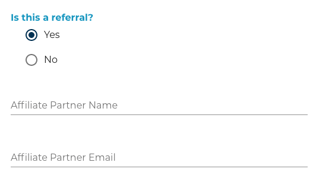
-Start typing in the affiliate partner name and if they already exist, they will populate. If this is a new affiliate partner, choose "Create new partner"
4. What type of promotion is this
-Discount % on ALL orders
-Waive onboarding fee
-Give # of free orders (NOT services, entire orders)
5. Submit to create
Editing a Transactly Code
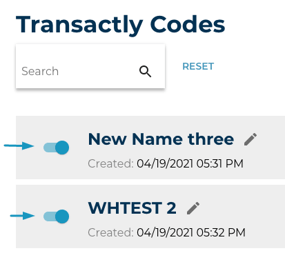
Choose the pencil icon to edit a code
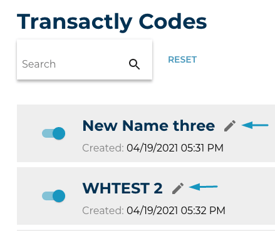
🚨 NOTE: A code can only be edited if it has NOT been used yet.
ex: You just created a new code and there is a typo in the name, okay to edit.
If a code has been used, DO NOT edit the code in any way, simply create a new code.
Disabling a Transactly Code
Use the toggle switch to enable/ disable a code. This will not stop the discount for users who have already entered this code. Disabling a code will only turn it off for any future users trying to use the code.
FAQ
Referral Partners
- If a referral partners email needs to be changed, reach out to Support@Transactly.com
- If a referral partner doesn't want to receive notifications
-Login as Admin
-Users tab
-Search for the user
-Edit the user card to "Suppress Notifications"
Reporting
To view a report on Transactly Codes, filter HubSpot by field 'Code Property'
Using a Code
-A Transactly Code can only be applied during Onboarding
Questions about Transactly Codes?
Contact Support@transactly.com or chat us in the bottom right.