You need to start by signing in through our admin area. You can find the login page here!
If you do not have a login to the admin area, please talk to the manager of your department about getting one.
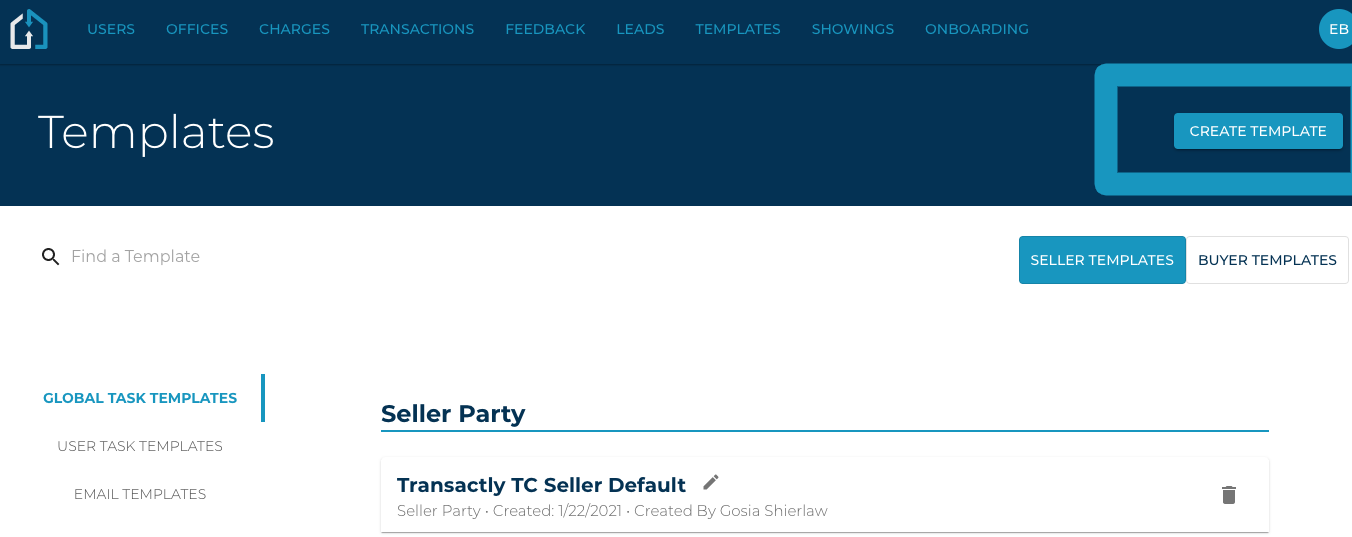
1. Within your Admin login, navigate to the Templates tab and click on Create Template
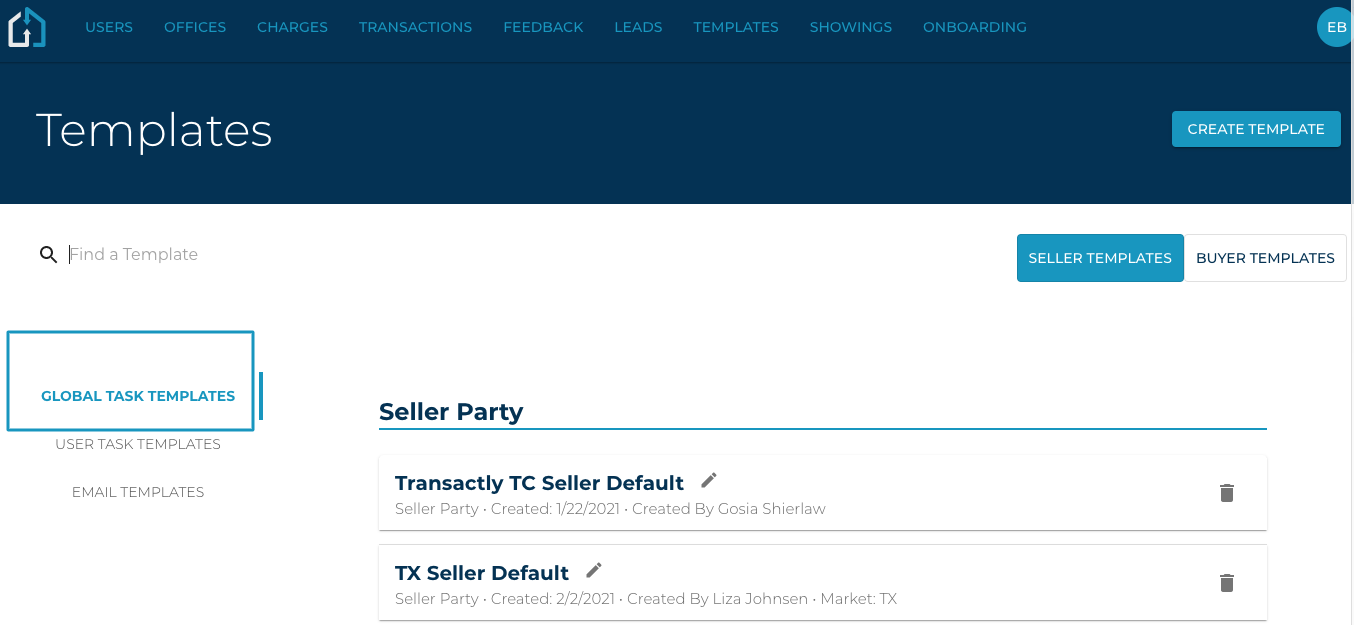
2. On the Templates page, ensure that Global Task Templates is selected on the left-hand side.
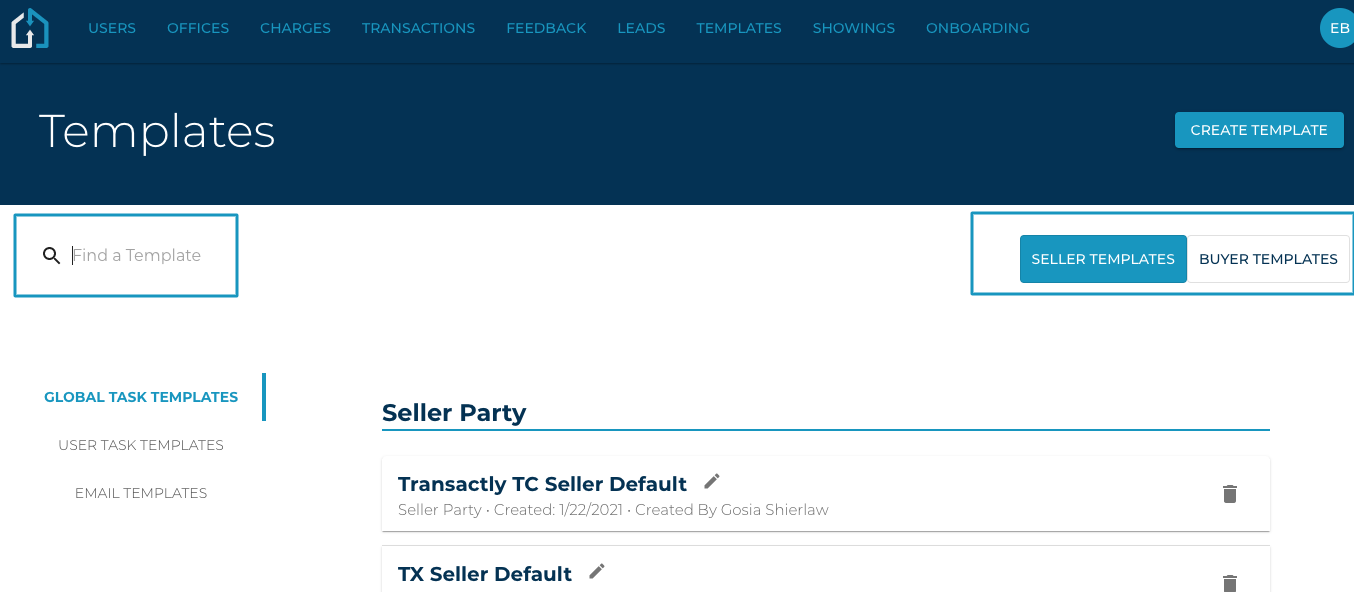
3. You may search for templates in the search bar ensuring that you’ve selected either Seller or Buyer templates.
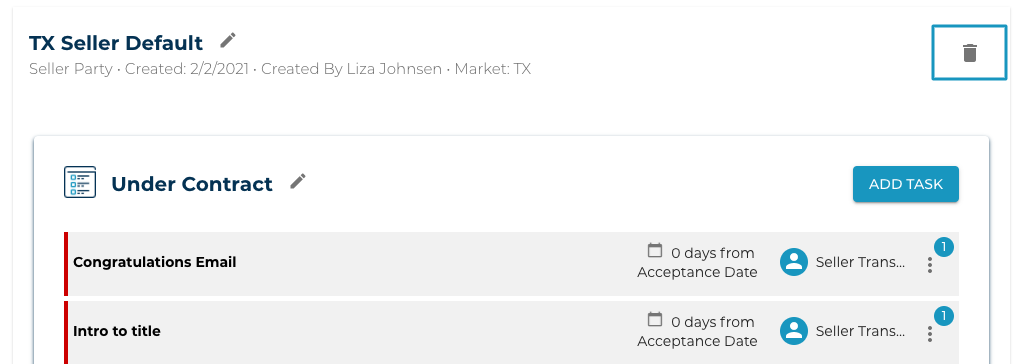
4. Clicking on the template card will open all of its tasks and categories that you may Edit and Delete.
-
- Clicking the Edit pencil will allow you to edit the template name and/or the category name
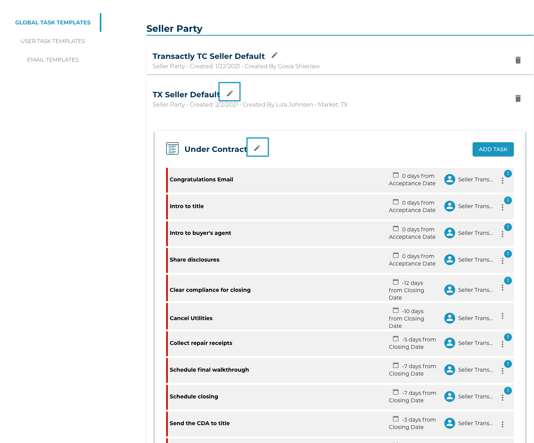
5. Clicking the Trash icon on the template card will delete the template.