
Start by signing in through our admin area. You can find the login page here!
If you do not have a login to the admin area, please talk to the manager of your department about getting one.
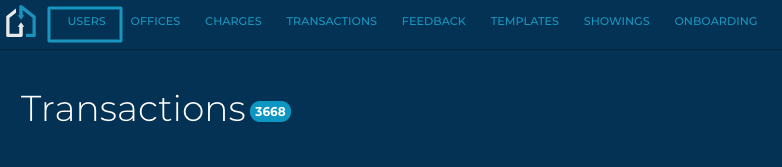
1. Within your Admin login, navigate to the Users tab.
2. You may search or filter for a user

3. Click on the User you would like to view/edit
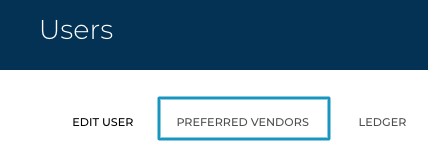
4. Click on the Preferred Vendors tab between Edit User and Ledger.
5. Individual cards can be opened by clicking anywhere on the card or selecting the Open All or Close All options on the right hand side.
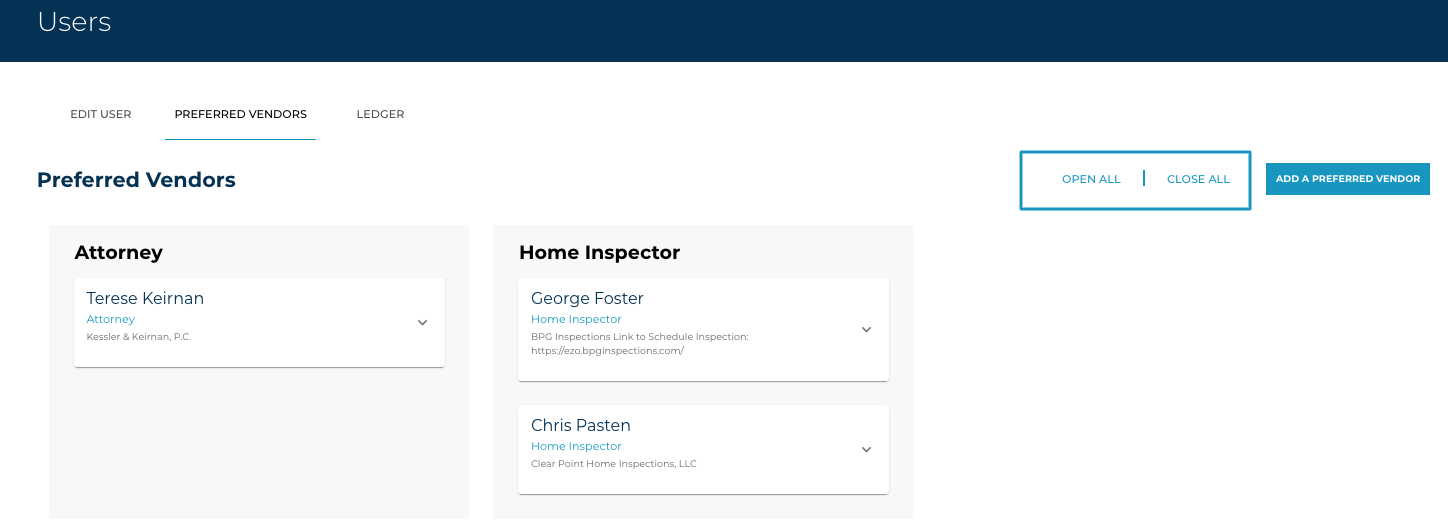
6. You may add a new Preferred Vendor by clicking on the Add a Preferred Vendor button. Enter the Category and Company fields at a minimum in order to save. Click Submit.
**Reminder: Maximum of 3 preferred vendors per category**